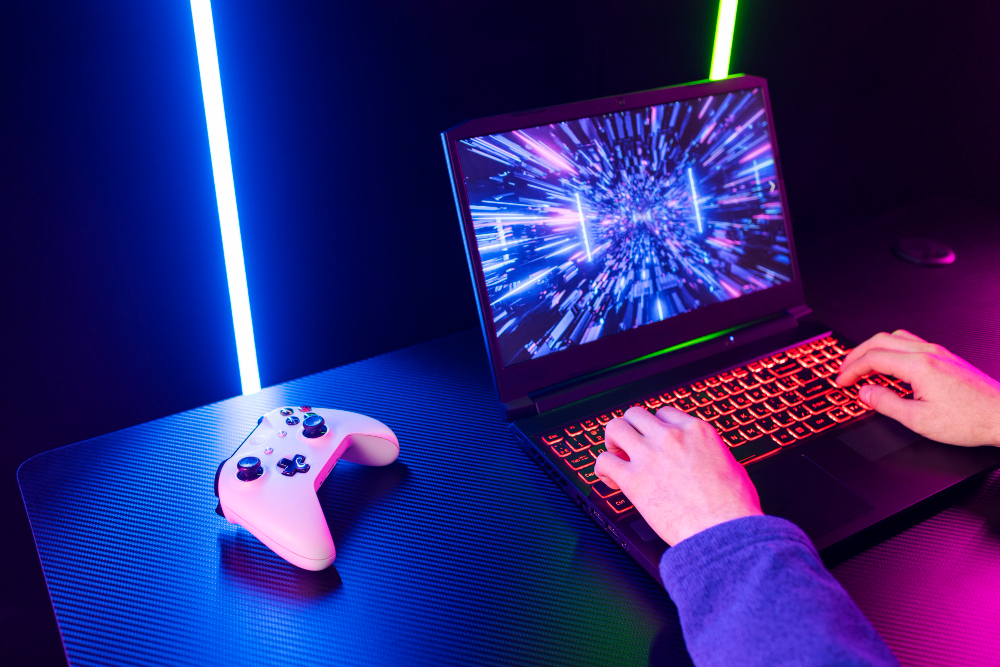
Ever wondered why your cloud gaming sessions lag despite having a beastly gaming laptop?
You’re not alone… cloud gaming can be a game-changer, but only if your setup is dialed in.
Let’s dive into practical, actionable steps about how to optimize gaming laptop for cloud gaming, ensuring smooth gameplay and minimal frustration.Buckle up!Because we’re about to transform your streaming experience!
How to Optimize Gaming Laptop for Cloud Gaming?
It relies heavily on internet speed and system efficiency, not just raw power. Even high-end laptops can stutter if not configured properly for services like GeForce Now or Xbox Cloud Gaming. When you optimize your setup, it:
- Reduces lag
- Improves visuals
- Makes every session feel seamless
1. Prioritize a Stable Internet Connection
Your internet is the backbone here. A shaky connection equals laggy gameplay, no matter how powerful your laptop is. So, you should aim for a minimum of 15 Mbps for 720p streaming, but 25 Mbps or higher is ideal for 1080p or 4K. Wired Ethernet connections trump Wi-Fi for stability, so plug in whenever possible.
Test your network latency using tools like Speedtest.net. If ping times exceed 50ms, consider upgrading your plan or switching to a 5GHz Wi-Fi band for less interference.
Close bandwidth-hogging apps like torrent clients to free up resources.
2. Fine-Tune Graphics Settings
Unlike traditional gaming, cloud gaming offloads rendering to remote servers, but your laptop’s display settings still matter. Set the screen resolution to match the streaming service’s output (e.g., 1080p for most platforms). This minimizes scaling issues and keeps visuals crisp.
Lower in-game graphics settings to reduce the data stream your laptop needs to process. For example, cap frame rates at 60 FPS if your service supports it to ensureyour laptop isn’t overworked decoding high-bitrate streams, which can cause stuttering.
3. Optimize Your Gaming Laptop’s Hardware
Your laptop’s CPU and GPU don’t do the heavy lifting in this regard, but they still play a role. Ensure your drivers are up to date. NVIDIA and AMD release regular updates that improve performance for streaming tasks. Use tools like GeForce Experience to automate this.
Switch to “High Performance” mode in your laptop’s power settings to prioritize speed over battery life to keepyour CPU and GPU ready to handle streaming decoding without throttling.
Also, close unnecessary background apps to free up system resources.
4. Manage Bandwidth
Bandwidth management is critical for low-latency cloud gaming. Streaming platforms like Stadia or Luna demand consistent data flow. Use Quality of Service (QoS) settings on your router to prioritize gaming traffic over other devices to getthe lion’s share of bandwidth.
If multiple devices are connected, limit their activity during gaming sessions. For example, pause large downloads or streaming on other gadgets.
5. Keep Your Laptop Cool
Cloud gaming might not stress your GPU as much as local gaming, but long sessions can still heat things up, which can leadto performance throttling and disruptstreaming. Use a cooling pad or elevate your laptop for better airflow.
Clean your laptop’s vents and fans every few months to prevent dust buildup.
Software like HWMonitor can track temperatures. Aim to keep your CPU and GPU below 85°C.
6. Update Software and Streaming Apps
Outdated software can bottleneck your cloud gaming performance. Regularly update your streaming apps (e.g., GeForce Now, Xbox Game Pass) to benefit from bug fixes and performance tweaks. Check for firmware updates for your Wi-Fi router, too, as they often improve connectivity.
Enable automatic updates for your operating system to avoid compatibility issues. For Windows laptops, ensure Game Mode is enabled in Settings to optimize resources for gaming. These small updates add up to a smoother experience.
7. Tweak Network Settings for Low Latency
Network latency is the enemy of cloud gaming. Beyond a fast connection, you can tweak settings to reduce ping. Use a wired connection or, if Wi-Fi is your only option, ensure your router supports modern protocols like Wi-Fi 6. Disable VPNs unless they’re optimized for gaming, as they can add latency.
Some platforms let you choose server regions—pick the closest one for lower ping. For example, GeForce Now displays server status; select one with green bars for optimal performance. These tweaks can shave milliseconds off your response time.
8. Optimize Your Display
Your laptop’s display settings can make or break the visuals. Set your refresh rate to match the streaming service’s output (usually 60Hz or 120Hz). This reduces screen tearing and ensures smooth gameplay visuals.
Calibrate brightness and contrast to avoid washed-out colors, especially for HDR-supported games.
If your laptop has an NVIDIA or AMD GPU, use their control panels to fine-tune color settings for better vibrancy. A well-calibrated display enhances immersion.
9. Use the Right Accessories
A good controller or mouse can elevate your setup. Many platforms support Xbox or PlayStation controllers, which offer better precision than touchpads. Pair them via Bluetooth or USB for minimal input lag.
Invest in a quality headset for clear audio, as cloud gaming audio streams can be sensitive to compression. Accessories tailored for gaming reduce latency and make controls feel natural, especially in fast-paced titles.
10. Monitor and Troubleshoot Performance
Keep an eye on performance metrics to catch issues early. Tools like MSI Afterburner can monitor CPU, GPU, and network usage. If you notice lag spikes, check for background processes hogging resources or network congestion.
Restart your router or laptop if performance dips unexpectedly. Some platforms offer diagnostic tools. Use them to pinpoint whether the issue lies with your setup or the service’s servers. Staying proactive keeps your gaming sessions uninterrupted.
Bonus Tips on How to Optimize Gaming Laptop for Cloud Gaming
Experiment with different platforms to find the best fit for your laptop. Each service (e.g., Shadow, PlayStation Now) has unique requirements and optimizations. Also, consider a subscription with lower latency servers if you’re a heavy gamer.
Join online forums or communities to stay updated on platform-specific tips. On Reddit, members often share user-tested tweaks for specific laptops or services. Staying informed keeps your setup ahead of the curve.
Frequently Asked Questions
1. Can I use a budget gaming laptop for cloud gaming?
Yes, budget laptops work well since most processing happens on remote servers. Focus on a stable internet connection and at least 8GB of RAM for smooth streaming.
2. Does cloud gaming drain my laptop’s battery faster?
It uses less GPU power but can still drain your battery due to constant network activity and screen usage. Plug in your laptop or use high-performance mode to maintain consistent power.
3. How do I know if my internet is fast enough for cloud gaming?
Run a speed test to check the download speed and ping. Aim for 25 Mbps or higher and a ping below 50ms. Contact your ISP if speeds are consistently low.
4. Can I play cloud games offline?
No, it requires a constant internet connection since games are streamed from remote servers. However, some platforms offer pre-loading for faster startup.
5. Are external monitors better for cloud gaming on laptops?
External monitors can improve visuals if they support higher refresh rates or resolutions than your laptop’s screen. Ensure your internet and laptop can handle the increased data load.
Conclusion
As you see, learning how to optimize gaming laptop for cloud gamingdoesn’t require a tech degree but just a few smart tweaks. From prioritizing a rock-solid internet connection to fine-tuning display settings, these steps ensure lag-free, immersive gameplay.
Start experimenting today, and you’ll be streaming AAA titles like a pro in no time.
What’s your next game to conquer?